
Frequently Asked Questions for Suppliers
Please DO NOT add your Website UR/link, Email Address, Phone Number, QR Code, Barcode, or Office Address on the product page via links or images for self-promoting. This is against our vendor policy.
No. There are no setup fees on any of our partnership plans.
Yes, you can upgrade or downgrade your plan at any time. From your Vendor Dashboard > Settings > Membership > click the Downgrade or Upgrade button on your current plan.
When a product is discontinued, please remove it from your store.
When a product is temporarily out of stock, please mark it as Backorder so we don’t lose its paid and organic SEO traffic.
Yes, in your Vendor Dashboard > Settings > Shipping, select the Table Rate Shipping option. Under Settings > Shipping or on the product page, do not add a country or continent with a shipping fee that you do not want to sell to; this prevents customers from that country or continent from purchasing your product.
If you no longer want to ship to a specific continent or country, delete that row from the shipping list, then click the SAVE CHANGES button to update your list.
Variable products let you offer a set of product variations, with control over prices, stock, images, and more for each variation. They can be used for a product with options, sizes, colors, etc. To add a variation, please see the steps below.
To add a variable product, create a new product, or edit an existing one.
Add Attributes to Use for Variations
In the Attributes section, add attributes before creating variations.
Custom Attributes
To add a new attribute specific to this product:
- If your product is saved as a Simple Product, switch to a Variable Product.
- First, create a new attribute or select an existing one (e.g., Size, Color Options), then click Add.
- Ensure the Visible on the product page AND used for variations are checked
- From Value(s): choose the option/value
- Click on the Add button and enter a name for the new attribute term
- And follow the next step to complete your entry
Log in to your Dashboard, click on Settings, and then Branding to edit it.
Log in to your Dashboard, click on Settings, and then Branding to edit it.
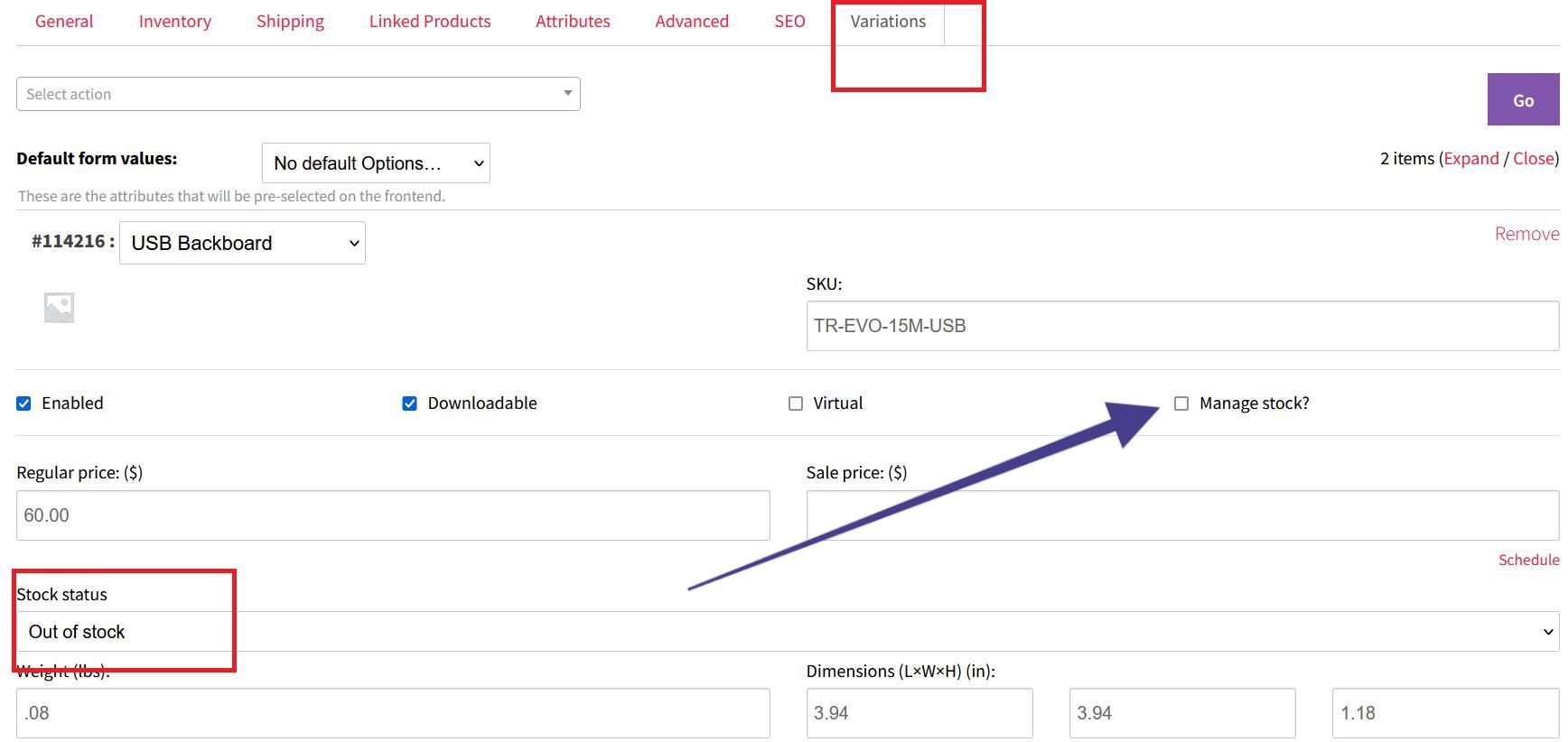
On the product page, after clicking Variations, select a variation, check the “Manage Stock?” option, choose In Stock or Out of Stock from the “Stock Status” drop-down, and save your changes.
If you can’t find the answer you’re looking for, please reach out to us via our Contact Us form or email us at partners@ozrobotics.com
Tips for Suppliers
-
Check your SPAM folder to ensure you accept emails from Oz Robotics
-
The faster you respond to our emails, the sooner we can process orders.
-
Add all your products to increase your chance of more sales.
-
Ensure your product isn’t marked as Out of Stock if it is in stock.
-
Add your Products and Shipping Fees per our instructions to sell more.